
📱 Using a phone? See the mobile guide →
How to Use Subreveal
Add subtitles to any video in just a few clicks. Search online or use your own files. Customize fonts, colors, position, and sync — all from one popup.
- 01
Install Subreveal in your browser
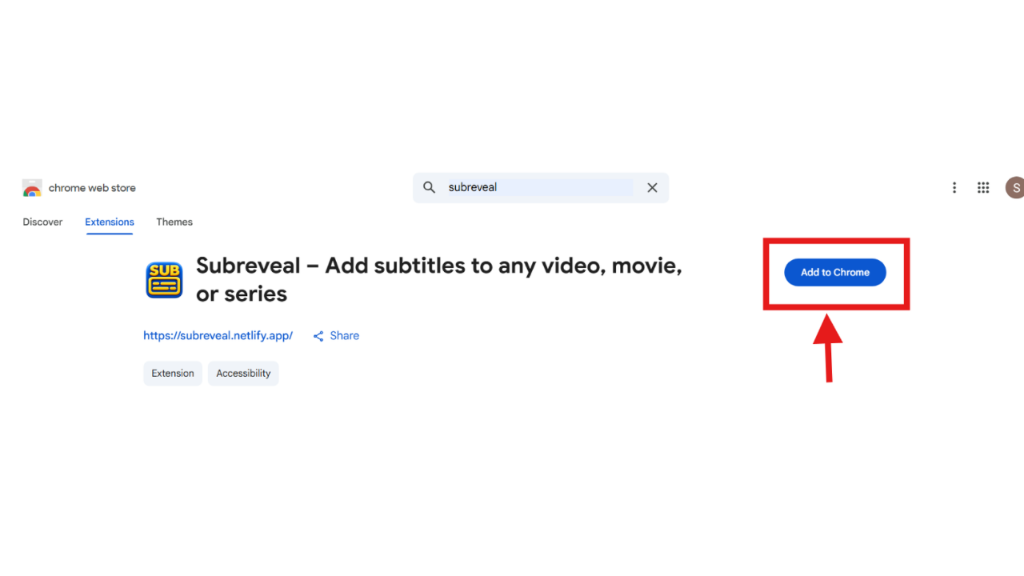
Visit the Chrome Web Store (or compatible Chromium browser store like Vivaldi, Edge, or Brave) and click Add to Chrome. Confirm the installation prompt to add Subreveal to your browser.
- 02
Pin Subreveal to your toolbar
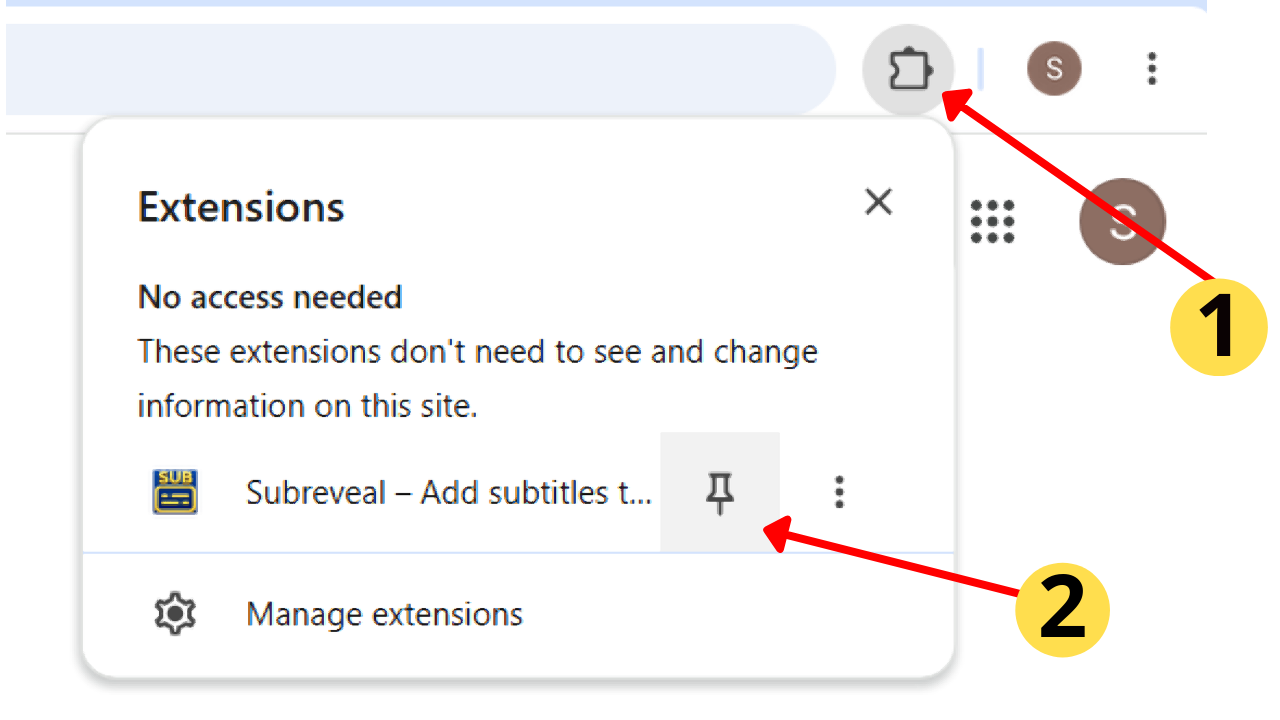
After installing the extension, click the puzzle-piece icon (1) in your browser's toolbar to open the Extensions menu. Click the pin icon (2) next to Subreveal – Add subtitles to any video so it stays pinned and visible for fast access.
- 03
Open the extension and load subtitles
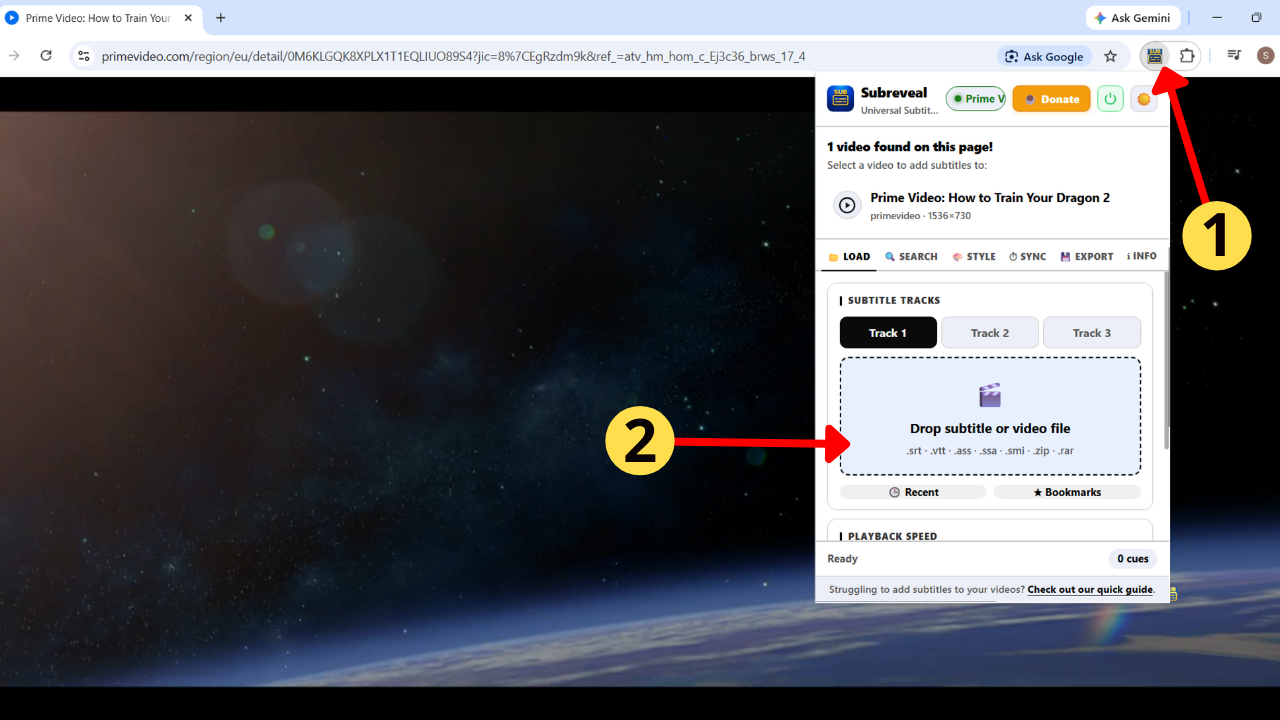
Navigate to any streaming website (Prime Video, Netflix, Disney+, YouTube, or any video page) and start playing. Click the Subreveal icon (1) in your toolbar to detect the video. Then, drag and drop your local subtitle file (SRT, VTT, ASS, SSA, SMI, ZIP, RAR) directly into the drop zone (2) under Track 1, 2, or 3.
- 03 a
Search and load subtitles via OpenSubtitles
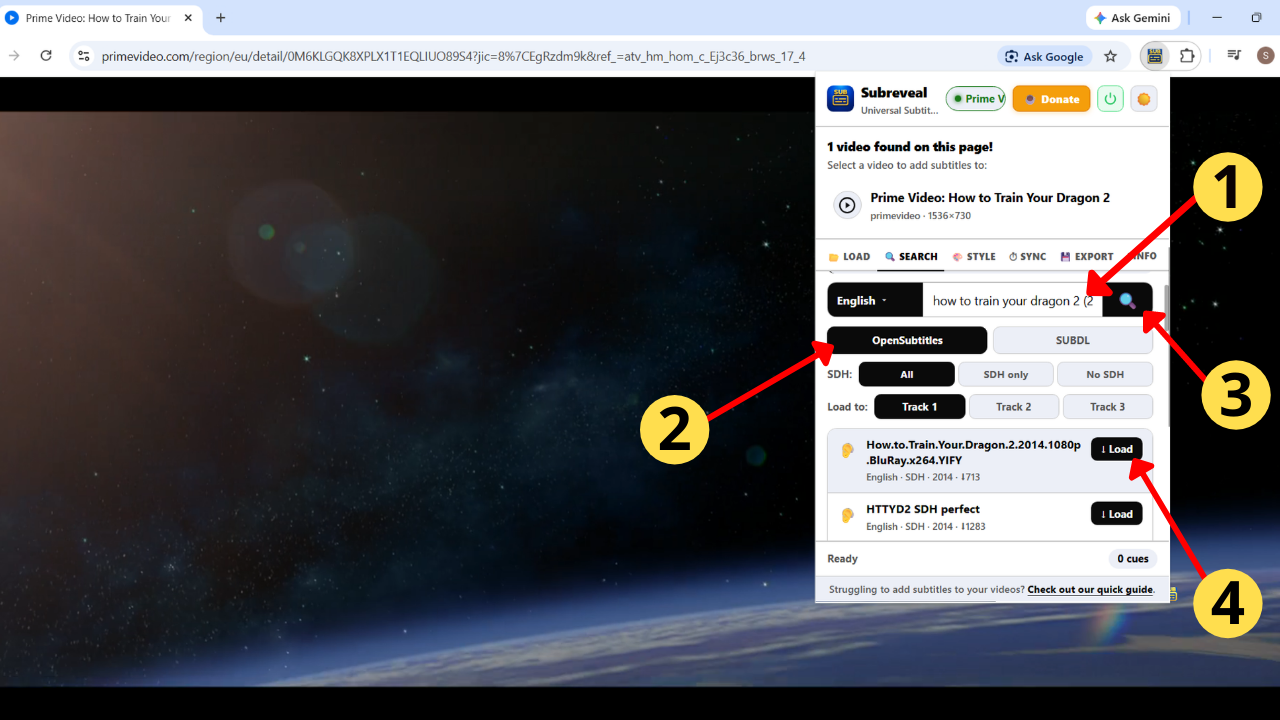
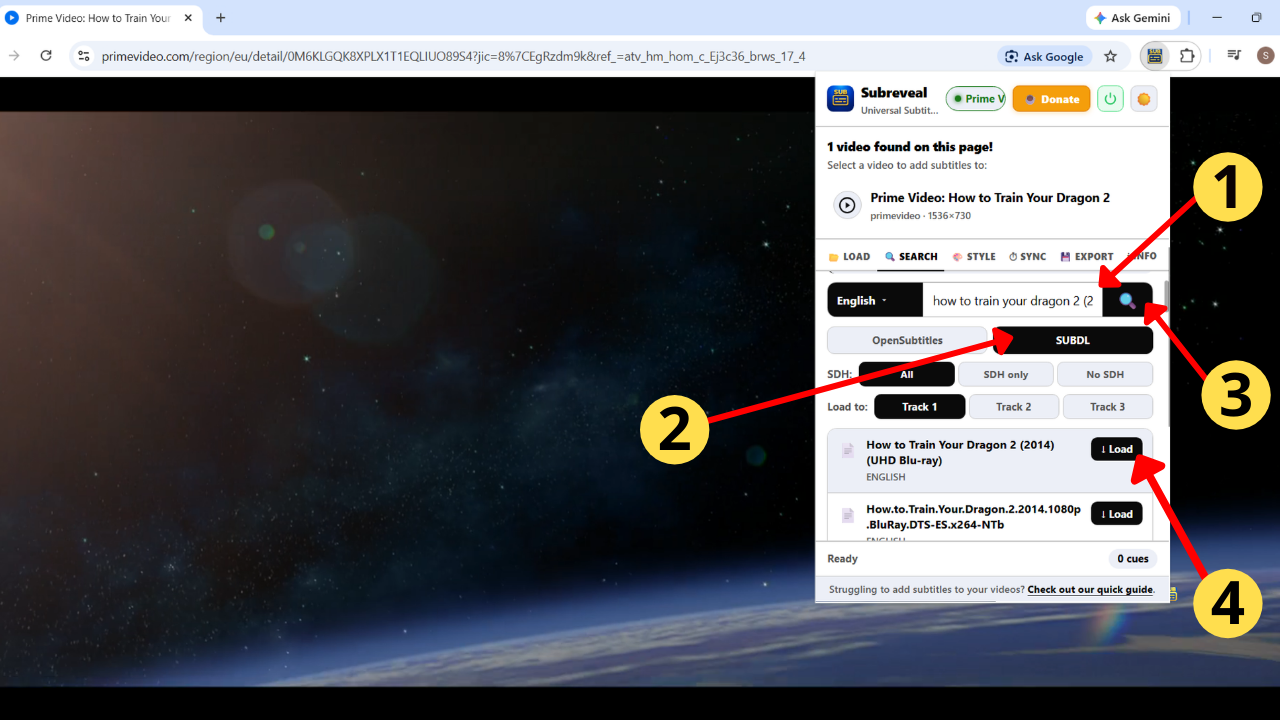
Switch to the Search tab in the popup. Enter the title or IMDb ID (1), choose OpenSubtitles (2), and click the search icon (3). In the results list below, click Load (4) next to the subtitle that matches your release.
- 03 b
Search and load subtitles via SUBDL
Enter the movie or series title in the Search tab (1), select the SUBDL (2) provider, and hit search (3). Review the found subtitle tracks and click Load (4) to apply the subtitle immediately to your video.
- 03 c
If you see "SUBDL: No API key set"
SUBDL requires a free personal API key (2,000 requests/day). Click the link to get your key at
subdl.com/panel/api. Open the Info tab in Subreveal, paste your key into the SUBDL API Key field, and click Save to enable SUBDL searching.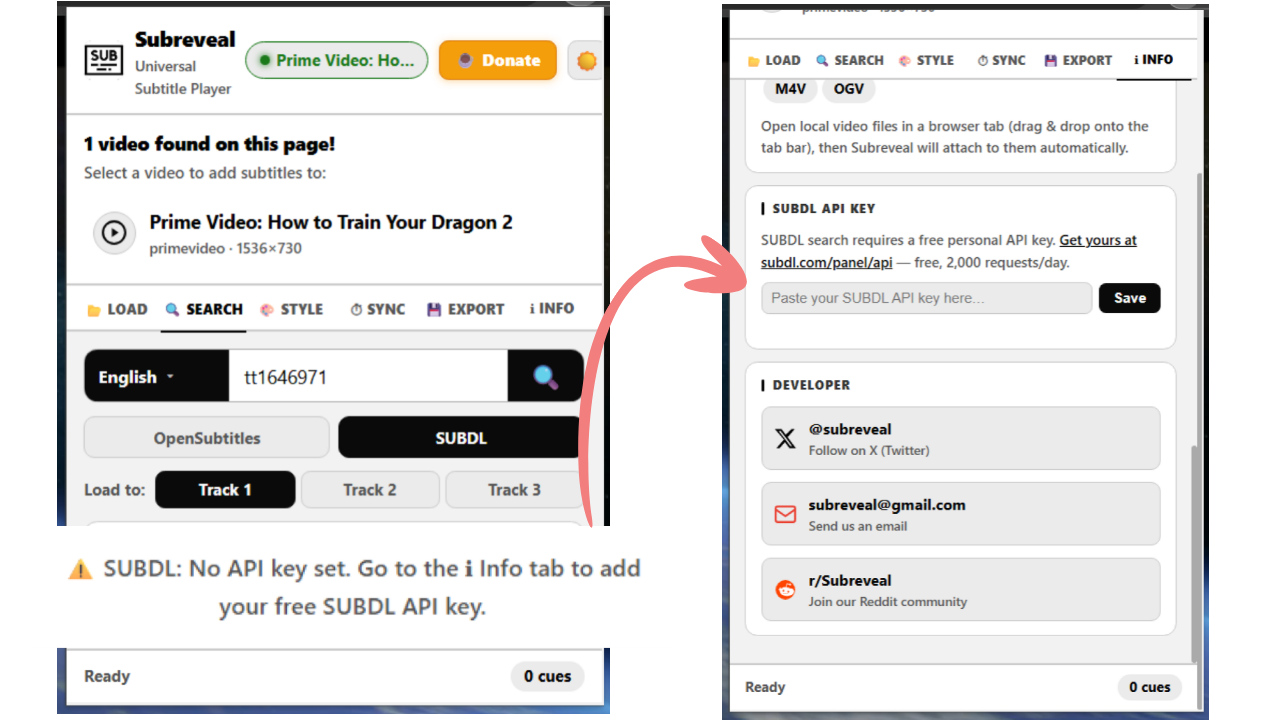
- 03 d
Search subtitles for TV Series & Episodes
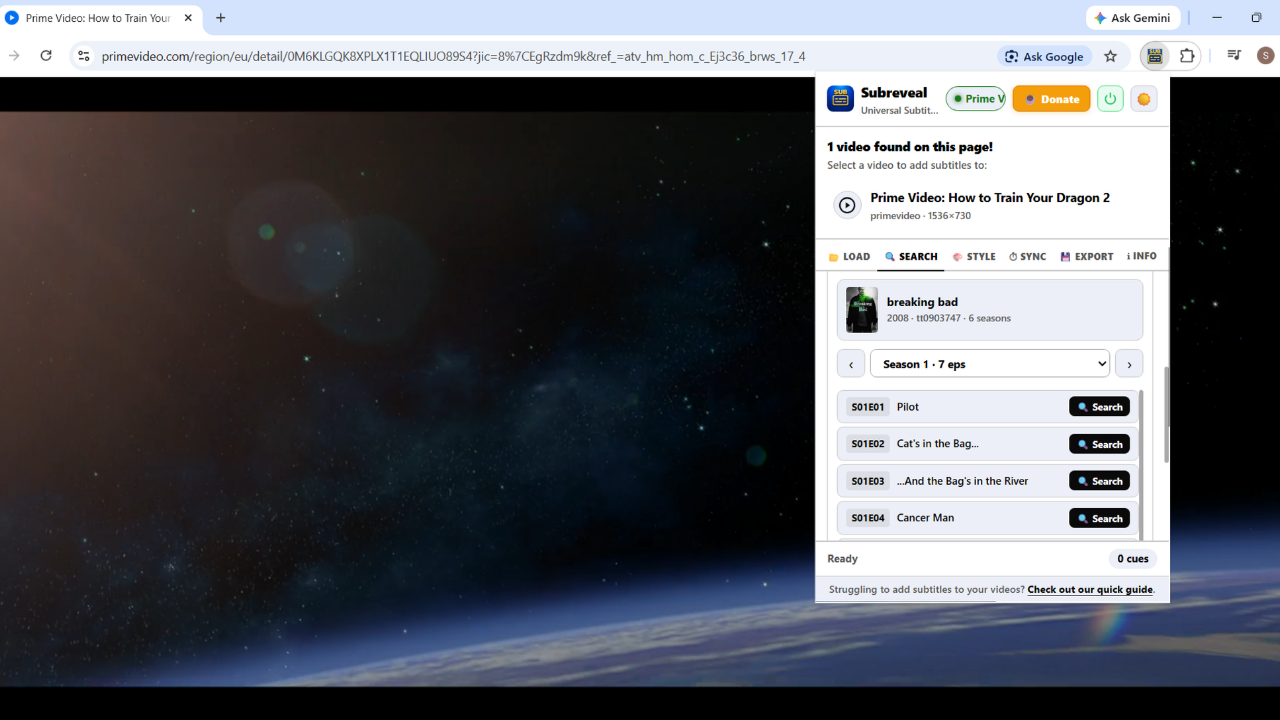
When searching for a TV series, Subreveal automatically organizes results by season and episode. Select your season from the dropdown and click Search next to any episode (e.g. S01E01, S01E02) to quickly find and load exact episode subtitles.
- 04
Customize font, size, colors & position
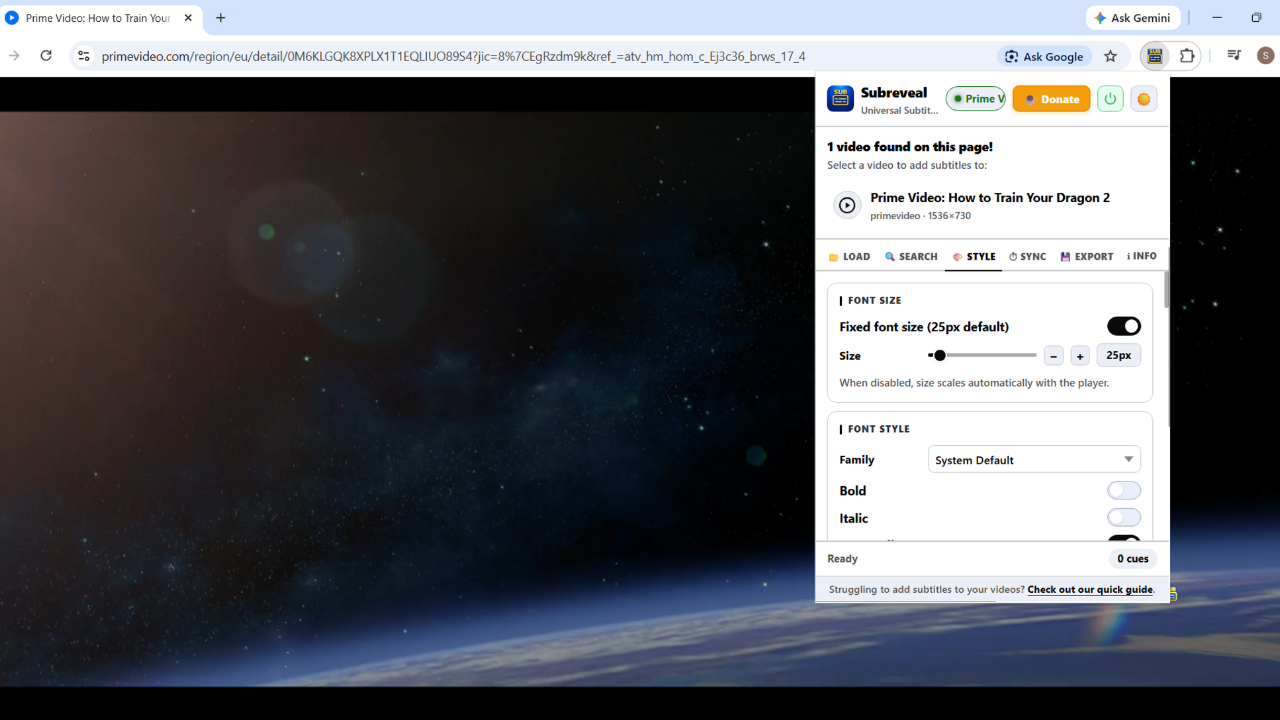
Switch to the Style tab to take complete control of how your subtitles look on screen. You can set a fixed font size or allow auto-scaling with the video player, change font families, toggle bold/italic/outline, customize font and background colors, and adjust position across a 9-point grid.
- 05
Watch local videos with subtitles on your PC
You can open any video file (MP4, MKV, WebM) stored on your computer in your browser and use Subreveal just like on streaming sites. To enable local video support, turn on "Allow access to file URLs" on Subreveal's extension details page (
chrome://extensions,edge://extensions, orvivaldi://extensions→ click Details on Subreveal → toggle Allow access to file URLs).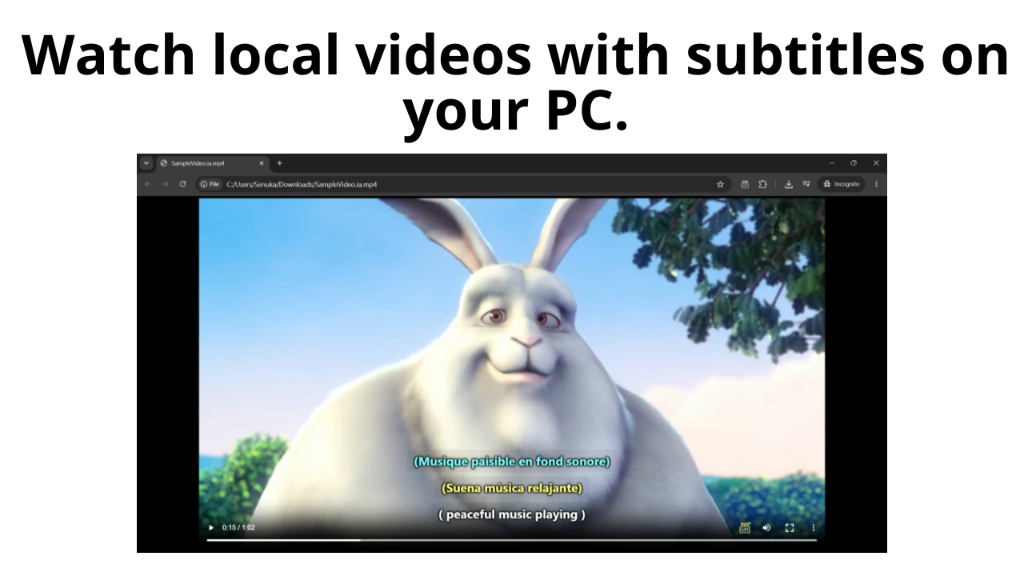
More things you can do
- Sync subtitlesUse the Sync tab to adjust timing offset if subtitles are early or late.
- Search subtitles onlineUse the Search tab to find subtitles via OpenSubtitles and SUBDL without leaving the extension.
- Export your workExport subtitles as SRT or VTT from the Export tab — including your custom sync adjustments.
- Use 3 tracks at onceLoad subtitles into Track 1, Track 2, and Track 3 for up to three languages simultaneously.
- Change playback speedAdjust video speed from 0.5× to 1.75× directly from the Load tab.
- Use on mobile (Android)Install Kiwi Browser, Vivaldi, or Edge Canary, add Subreveal, and use it on your phone.
- Use on FirefoxSubreveal is also available for Firefox — install it from Firefox Add-ons and follow the same steps above.
Get started on other browsers
Subreveal also works on Kiwi Browser, Vivaldi, and Edge Canary on Android, as well as Firefox.
With Kiwi Browser
Install Kiwi Browser from the Play Store, open the Chrome Web Store from within Kiwi, search for Subreveal, and tap Add to Kiwi. Pin it from the puzzle-piece menu just like on desktop Chrome.
Open in Chrome Web Store →With Vivaldi Browser
Install Vivaldi Browser for Android from Google Play, open the Chrome Web Store inside Vivaldi, search for Subreveal, and tap Add to Chrome to activate extensions.
Open in Chrome Web Store →With Edge Canary
Install Edge Canary from the Play Store, open edge://extensions in the address bar, enable "Allow extensions from other stores", then visit the Chrome Web Store and add Subreveal.
Open in Chrome Web Store →With Firefox
Subreveal also supports Firefox. Install it from Firefox Add-ons, pin it to your toolbar, and follow the same steps above to load and style subtitles.
Get Subreveal for Firefox →